Start a redesign
Capture the current website as a reference for what comes next.
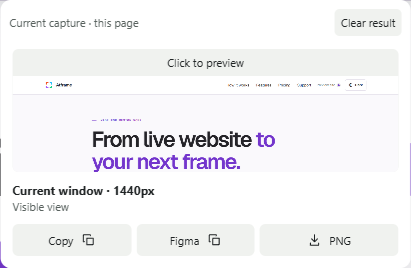
From live website to your next Figma frame.
Capture at your width. Copy layers when available. Make it yours.
Free. No account. No capture limit.PNG export included.
The same page can tell a different story on mobile. Start with Desktop, Tablet, Mobile, or a width of your own.
Try the controls. This example page really reflows.
Illustrative website, not a capture. Use Atframe in Chrome to capture your own pages.
Current window, presets, or custom widths.
The frame starts with you.
Collect a whole layout, keep the current view, or pick one element. Your reference can be as focused as your idea.
Capture the whole document, including content below the fold.
Capture-scope illustration
Bring captured pages into Figma as editable layers when conversion succeeds. Explore a layout, change the details, and make it part of your next idea.
See the Figma workflowConversion varies by page. Complex CSS, fonts, and artwork may differ; some results paste as an image or may be incomplete.

Editable when supported.
A starting point to build on.
Copy or download the image.
A visual reference you can share.
A page worth studying. A layout worth revisiting.
Bring a little more of the web into your design process.
Capture the current website as a reference for what comes next.
Compare the same page at desktop, tablet, and mobile widths.
Keep a navigation, a pricing section, or one small interaction in view.
Screenshots and page contents are processed locally, not sent to an Atframe server. Early access needs no sign-in or usage check.
A clear look at privacy and permissionsNo. Conversion depends on the page. Fonts, images, and complex styles can differ, and some pages may paste as an image or produce incomplete results. Keep the PNG when you need a visual reference.
Yes. Atframe is free, with no account requirement or capture limit. PNG export and Figma conversion when available are included.
Atframe uses Chrome’s debugger API to adjust the capture width and take a screenshot. Chrome displays a notice during the operation; Atframe detaches afterward.
Use Atframe on regular web pages in Chrome 124 or later. Chrome internal pages and the Chrome Web Store cannot be captured.
Read the support guide or email gojo.seinsi@gmail.com. Include the page URL and what happened when a capture or paste did not work.